Adding Grit and Texture: A Practical Guide to the Brick Wall Procreate Brush
Digital art often suffers from a common complaint: it looks too clean. When you are working on an iPad with a glass screen, your lines can feel sterile, lacking the organic imperfections that give traditional media its soul. This is where texture becomes not just an aesthetic choice, but a necessity for grounding your work in reality. The Brick Wall Procreate Brush offers a straightforward solution to this problem, allowing artists to inject immediate depth, age, and character into their illustrations without spending hours manually painting individual bricks or sourcing complex overlay files.
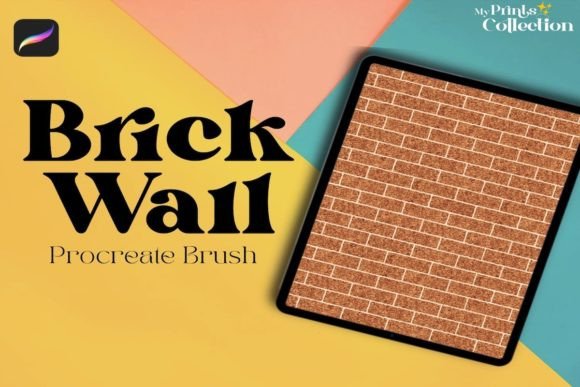
Unlike standard stamp brushes that simply paste a static image, this tool is designed to function as a seamless pattern generator within the Procreate ecosystem. It allows you to lay down a consistent brick or rusted metal texture that interacts naturally with your canvas size and rotation. For creators who value efficiency, understanding how to integrate this specific brush into your workflow can significantly reduce editing time while elevating the perceived quality of your final piece.
Why Texture Matters in Modern Digital Illustration
We live in a visually saturated world. Whether you are designing a logo for a local coffee shop, creating social media graphics for a brand, or illustrating a children’s book, your audience subconsciously judges the "weight" of your image. Flat colors rarely hold attention for long. By introducing the tactile feel of a brick wall or corroded metal, you trigger a sensory response. Viewers can almost feel the roughness of the surface.
The Brick Wall Procreate Brush is particularly useful because it bridges the gap between structural elements and atmospheric decay. It is not limited to just drawing buildings. Think of it as a textural foundation. When you apply it to a background, it provides context. Is this a futuristic city? Use the cleaner brick patterns. Is it a post-apocalyptic scene? Layer the rust variations over the top. The versatility lies in how you blend these textures with your existing color palettes using Procreate’s robust blending modes.
Real-World Applications for Different Creators
Understanding the utility of this brush requires looking at how different professionals might actually use it in their daily projects. It is not a one-size-fits-all tool, but rather a specialized asset that solves specific visual problems.
Graphic Designers and Branding Specialists
If you are a freelancer designing packaging for an artisanal product, such as small-batch hot sauce or craft beer, authenticity is key. Consumers associate rustic textures with handmade quality. Instead of searching stock photo sites for generic brick backgrounds that may have licensing restrictions, you can generate custom textures directly in your design file. You can create a label background that features subtle masonry patterns, giving the product a grounded, urban, or industrial vibe that aligns with current design trends.
Concept Artists and Game Developers
For those working in entertainment media, speed is essential during the concept phase. When sketching environment ideas for a video game or film, you need to communicate materiality quickly. Using the Brick Wall Procreate Brush allows you to block out large architectural structures in seconds. You can establish the scale of a building by defining the brick size relative to a character silhouette. Furthermore, the rust variants are invaluable for designing props, weapons, or vehicles that need to look weathered and used, adding narrative history to inanimate objects.
Educators and Content Creators
Teachers and educational bloggers often create digital worksheets, presentation slides, or infographic headers. A plain white background can be distracting or boring. Adding a faint, low-opacity brick texture can provide a structured grid that helps organize information visually without overwhelming the text. It adds a layer of sophistication to educational materials, making them appear more polished and professionally produced.
Technical Considerations and Compatibility
Before downloading or purchasing any digital asset, it is crucial to understand the technical constraints. The Brick Wall Procreate Single Brush is built specifically for the Procreate app on iPad. It leverages the unique engine capabilities of Procreate version 5 or higher. This means it utilizes specific rendering features that allow for seamless tiling and dynamic spacing adjustments that older versions or other software cannot replicate efficiently.
It is important to note what this tool is not. It is not compatible with Adobe Photoshop or Illustrator. While you can export your final artwork from Procreate to these programs, the brush file itself will not function there. If your primary workflow is desktop-based using vector tools or raster editors on a computer, this asset will not serve you. However, for iPad-centric workflows, it integrates seamlessly. Ensure your device meets the software requirement of Procreate App version 5 or higher to avoid frustration during installation or usage.
How to Maximize the Brush’s Potential
Owning the brush is only the first step; knowing how to manipulate it determines the quality of your output. Here are practical strategies for getting the most out of this tool:
- Experiment with Blending Modes: Do not just paint with the brush on a new layer set to "Normal." Try setting the layer to "Multiply" for a shadowy, ingrained look, or "Overlay" to let the underlying colors shine through the texture. This creates a more integrated appearance rather than a sticker-like effect.
- Adjust Opacity and Flow: Rarely should you use the brush at 100% opacity unless you are aiming for a bold, graphic style. Lowering the opacity allows you to build up the texture gradually, giving you control over how prominent the brick or rust details appear.
- Combine with Masking: Use clipping masks to restrict the brick texture to specific shapes. For example, if you are drawing a vintage sign, clip the brick texture to the shape of the signboard so it doesn’t spill over into the background.
- Color Variation: Use the hue, saturation, and brightness sliders to tweak the color of the brush stroke. A brick wall does not have to be red; it can be blue, gray, or even neon, depending on the artistic direction of your piece.
Making the Right Choice for Your Workflow
When considering whether to add the Brick Wall Procreate Brush to your library, ask yourself about your current pain points. Do you find yourself spending too much time searching for free textures online? Do your digital paintings feel flat despite your best efforts with shading? If the answer is yes, this tool addresses those issues directly by putting high-quality, customizable texture at your fingertips.
However, if you primarily work with vector graphics or require precise, mathematical precision in your patterns, a procedural texture generator on a desktop might be more appropriate. This brush is designed for the organic, hand-drawn feel that defines the Procreate experience. It is ideal for users who want to maintain the spontaneity of digital painting while adding the richness of physical materials.
Ultimately, tools like this are about expanding your creative vocabulary. They allow you to say more with less effort, freeing up mental energy for composition, storytelling, and color theory. By integrating a reliable texture brush into your routine, you ensure that your work stands out in a crowded digital landscape, offering viewers something they can not just see, but feel.